

Managing massive personal knowledge bases (PKBs) and research libraries presents a steep hurdle for local AI setups: scalability. While native Obsidian plugins like Smart Connections excel at indexing smaller Markdown note vaults (~5,000 to 50,000 files), dropping 1,000+ heavy, multi-page PDFs directly into an Obsidian vault will trigger indexing bottlenecks, high VRAM strain, and memory exhaustion.
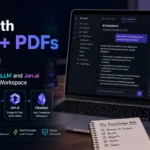
The solution is a hybrid local-AI architecture. By leveraging AnythingLLM as your high-capacity Retrieval-Augmented Generation (RAG) document engine, Jan.ai as your local model host and inference provider, and Obsidian as your clean Markdown note-taking workspace, you can query massive PDF archives offline with zero cloud telemetry.
The 3-Tier Local Knowledge Architecture
Rather than forcing your note-taking app to parse heavy PDF binary blobs, separate your stack into three specialized layers:
[ Tier 1: Storage & Note Interface ] ──► Obsidian Vault (.md files, Dataview queries)
[ Tier 2: Document Indexer & RAG ]  ──► AnythingLLM (PDF Chunker, LanceDB/Chroma Vector DB)
[ Tier 3: Inference & Local Provider] ──► Jan.ai (OpenAI-compatible local API server)
-
Jan.ai (Inference Engine): Hosts open-weight LLMs (like
Llama-3.3-70B,Qwen2.5-Coder-14B, orDeepSeek-R1-Distill) and local embedding models (nomic-embed-text). It exposes an OpenAI-compatible local REST server onhttp://localhost:1337. -
AnythingLLM (RAG Workspaces): Acts as a document container. It ingests thousands of PDFs, performs recursive text splitting, builds high-density vector indexes via LanceDB or Chroma, and executes hybrid keyword/dense searches.
-
Obsidian (Knowledge Interface): Your primary workspace. You query your PDF library through AnythingLLM or Jan.ai and synthesize insights into clean, interlinked Markdown notes.
Technical Setup Protocol: Integrating the Stack
AnythingLLM vs. Jan.ai vs. Native Obsidian Plugins
Understanding how these platforms split operational responsibilities prevents system bloat:
| Feature / Metric | AnythingLLM | Jan.ai | Native Obsidian (Smart Connections) |
| Primary Specialty | Document RAG & PDF Workspace | Local Model Host / GUI | Native Markdown Vault Search |
| Max Scale (Recommended) | 100,000+ Documents | Model dependent | ~50,000 Notes |
| Supported File Formats | PDF, DOCX, TXT, EPUB, CSV, HTML | N/A (Inference Provider) | .md, .txt, .canvas |
| Vector Database Engine | LanceDB / ChromaDB / Pinecone | External / API integrations | Local JSON / SQLite Vector Index |
| Memory Optimization | High (Disk-based vector DB) | High (GPU Offloading & Quantization) | Moderate (RAM intensive on large vaults) |
4 Rules to Avoid Document Retrieval Drift
When chatting with a 1,000-PDF archive, local RAG engines can produce imprecise responses if documents are unorganized:
-
Pre-Process Scanned PDFs with OCR: Standard vector embedders cannot read scanned image PDFs. Run scanned documents through a local OCR tool (like
tesseractorocrmypdf) before embedding them into AnythingLLM. -
Implement Metadata Tagging: Organize PDFs into distinct AnythingLLM Workspaces by domain (e.g.,
Cybersecurity-PDFs,Medical-Research,Legal-Contracts). Querying a focused 200-PDF workspace yields vastly higher retrieval precision than dumping 1,000 un-categorized documents into a single vector bucket. -
Use Zero-Shot Grounding Prompts: Add a strict system prompt to your AnythingLLM workspace to ensure the LLM cites precise document sources:
Plaintext
Answer the query using ONLY the provided document chunks. Cite the source PDF filename and page number for every factual claim. If the information is missing, reply "Not found in PDF library." -
Re-Index After Changing Embedding Models: If you switch your local embedding model in Jan.ai (e.g., moving from
all-MiniLM-L6-v2tonomic-embed-text), you must purge and rebuild your AnythingLLM vector index. Vector spaces built with different models are incompatible.