






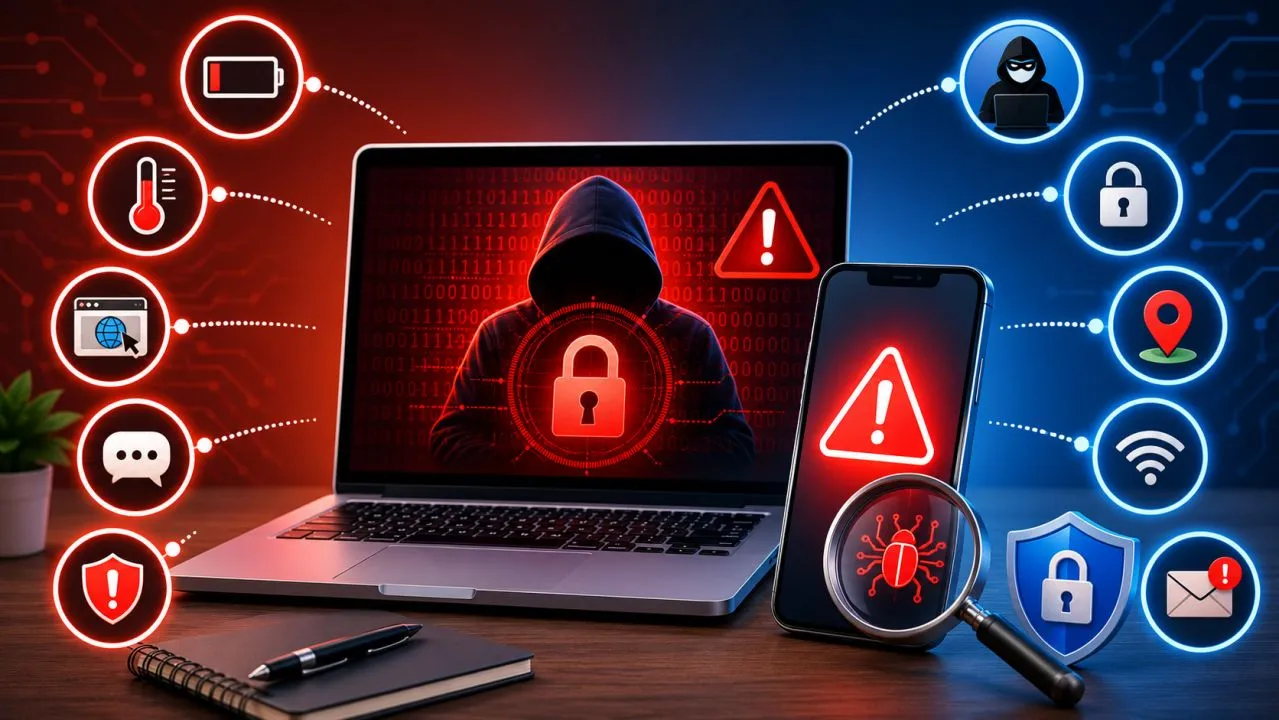
Cyberattacks are becoming more sophisticated every year, and hackers no longer target only large companies. Everyday smartphone and laptop users are increasingly at risk from malware, phishing attacks, spyware, ransomware, credential theft, and account takeovers. The challenge is that many compromises happen quietly, without obvious pop-ups or dramatic warnings.
So how can you tell if your phone or laptop has actually been hacked?
This guide explains the real warning signs of a compromised device, what causes them, how hackers gain access, and the steps you should take to secure your data before more damage occurs.
What Does “Hacked” Actually Mean?
A device isn’t necessarily hacked simply because it’s running slowly.
In cybersecurity, a hacked device usually means an unauthorized person or malicious software has gained access to your operating system, files, applications, accounts, or network activity. This could happen through:
- Malware infections
- Spyware
- Remote access trojans (RATs)
- Ransomware
- Keyloggers
- Credential theft
- Browser hijacking
- Session hijacking
- Malicious apps
- Exploited software vulnerabilities
Some attacks focus on stealing information, while others monitor activity, encrypt files, or use your device to attack others.
1. Your Battery Suddenly Drains Much Faster
A rapidly draining battery can be a normal sign of aging hardware, but it may also indicate malicious background activity.
Malware may continuously:
- Upload stolen data
- Record keystrokes
- Monitor location
- Capture screenshots
- Communicate with command-and-control (C2) servers
- Mine cryptocurrency
These hidden processes increase CPU usage and power consumption.
Check your battery usage statistics to identify apps consuming abnormal amounts of energy.
2. Your Device Becomes Unusually Hot
If your phone or laptop feels hot even when idle, background processes may be consuming system resources.
Possible causes include:
- Cryptojacking malware
- Hidden surveillance software
- Unauthorized remote access sessions
- Continuous data synchronization
- Excessive network traffic
While gaming or video editing naturally generates heat, unexplained overheating deserves investigation.
3. Performance Suddenly Slows Down
One of the earliest indicators of compromise is unexpected performance degradation.
Watch for:
- Long application startup times
- Frequent freezing
- High CPU usage
- Increased RAM consumption
- Disk activity while idle
- Random fan noise
Use built-in task managers or activity monitors to identify unfamiliar processes.
4. Strange Pop-Ups or Browser Redirects
Unexpected advertisements, fake virus alerts, or websites redirecting to unfamiliar pages often indicate:
- Browser hijacking
- Malicious browser extensions
- Adware
- DNS manipulation
A compromised browser may also:
- Change your homepage
- Replace your default search engine
- Install unknown toolbars
- Display excessive advertisements
5. Unknown Apps Appear
One of the clearest warning signs is discovering software you never installed.
Examples include:
- Fake security apps
- Unknown VPN clients
- Remote desktop software
- Cryptocurrency miners
- Suspicious utilities
Always verify recently installed applications and review their permissions.
6. Friends Receive Messages You Didn’t Send
If contacts report receiving unusual emails, text messages, or social media messages from you, attackers may have compromised one or more of your accounts.
This often results from:
- Account takeover
- Credential stuffing attacks
- Stolen authentication cookies
- Password reuse across multiple services
Changing your password alone may not remove an attacker if active login sessions remain valid.
7. Login Alerts From Unknown Locations
Many online services notify users about new sign-ins.
Watch for alerts showing:
- Unknown countries
- Unrecognized devices
- New browsers
- Suspicious IP addresses
- Failed login attempts
Review your account’s security page and terminate unfamiliar sessions immediately.
8. Camera or Microphone Activates Unexpectedly
Modern operating systems display indicators when cameras or microphones are active.
If these activate without explanation, investigate immediately.
Potential causes include:
- Spyware
- Remote administration tools
- Malicious conferencing software
- Unauthorized application permissions
Review privacy settings to determine which applications have access.
9. Antivirus or Security Software Stops Working
Sophisticated malware often attempts to disable protective software.
Warning signs include:
- Antivirus refusing to update
- Security scans failing
- Firewall disabled
- Real-time protection turned off
- Missing security notifications
Attackers frequently target endpoint security first to avoid detection.
10. Data Usage Suddenly Increases
Unexpected increases in mobile or Wi-Fi data consumption may indicate:
- File exfiltration
- Cloud synchronization by malware
- Remote control activity
- Spyware uploading recordings
- Botnet participation
Compare recent network usage against previous months.
11. Your Browser Keeps Logging You Out
Although sometimes harmless, repeated forced logouts may indicate:
- Session hijacking
- Cookie theft
- Browser compromise
- Authentication token abuse
Modern attackers increasingly steal active sessions instead of passwords.
12. Files Suddenly Disappear or Become Encrypted
If documents unexpectedly vanish or become inaccessible, ransomware may be responsible.
Common indicators include:
- Renamed files
- Unknown file extensions
- Ransom notes
- Locked folders
- Encrypted backups
Disconnect the affected device from the internet immediately.
13. Passwords Stop Working
If multiple passwords suddenly fail despite being correct, attackers may have changed:
- Passwords
- Recovery email addresses
- Two-factor authentication settings
- Backup phone numbers
This usually indicates full account compromise rather than device failure.
14. Security Settings Change Without Permission
Review your device settings for unauthorized modifications, including:
- Disabled screen lock
- Unknown administrator accounts
- Accessibility permissions
- Developer options
- USB debugging
- VPN profiles
- DNS settings
Configuration changes often persist even after malware becomes inactive.
Common Ways Devices Get Hacked
Understanding attack vectors helps reduce future risk.
Common entry points include:
- Phishing emails
- Fake software updates
- Malicious mobile apps
- Public Wi-Fi attacks
- Infected USB drives
- Software vulnerabilities
- Weak passwords
- Social engineering
- Browser exploits
- Fake QR codes
Many successful attacks begin with user interaction rather than technical hacking.
What Should You Do If You Think You’ve Been Hacked?
Don’t panic, but act quickly.
- Disconnect from Wi-Fi and mobile data if suspicious activity is ongoing.
- Run a full antivirus and anti-malware scan.
- Update your operating system and installed applications.
- Change passwords using a different trusted device.
- Enable multi-factor authentication (MFA).
- Review recent account login history.
- Remove unfamiliar applications and browser extensions.
- Check account recovery information.
- Back up important files if safe to do so.
- Reset the device if malware cannot be removed.
How to Protect Your Devices From Future Attacks
Good cybersecurity habits significantly reduce your risk.
Best practices include:
- Keep software updated.
- Install apps only from trusted sources.
- Use strong, unique passwords.
- Store credentials in a password manager.
- Enable passkeys or MFA where available.
- Avoid clicking suspicious links.
- Regularly review app permissions.
- Monitor login notifications.
- Use encrypted cloud backups.
- Enable automatic security updates.
For businesses and advanced users, endpoint detection and response (EDR) tools provide continuous monitoring for suspicious behavior.
Frequently Asked Questions
Can hackers access my phone without me clicking anything?
Yes. While most attacks require user interaction, some exploit unpatched software vulnerabilities or insecure network services. Keeping your device updated reduces this risk.
Does factory resetting a phone remove hackers?
A factory reset removes most malware, but it won’t secure compromised online accounts. Always change passwords, revoke active sessions, and enable MFA after resetting a device.
Can hackers read my text messages?
If spyware, a remote access trojan, or a compromised messaging account is involved, attackers may gain access to conversations. Using end-to-end encrypted apps and keeping your device secure helps protect your communications.
Are Macs and iPhones immune to hacking?
No. Although they include strong security features, no operating system is immune. Phishing, malicious apps, stolen credentials, and software vulnerabilities can affect any platform.
Not every slow device has been hacked, but unusual combinations of warning signs—such as unexplained battery drain, overheating, unknown apps, browser redirects, login alerts from unfamiliar locations, disabled security software, or unexpected data usage—should never be ignored.
Cybercriminals increasingly rely on stealth rather than obvious attacks. By recognizing early indicators of compromise, monitoring your accounts, and following good cybersecurity practices, you can reduce the likelihood of serious data loss or identity theft.
The best defense isn’t just antivirus software—it’s awareness. Understanding how modern attacks work, keeping your devices updated, and reviewing your digital security regularly will go a long way toward protecting your personal information and online accounts.